Best Drawing Tablet Buying Guide — Black Friday Deals 2026
A drawing tablet can mean a screen connected to a computer, a screen-free surface paired with a computer, or a standalone device. Those setups change where you draw, what you need to connect, and which controls are close at hand. This guide compares three options with different approaches: HUION’s computer-connected display, Wacom’s Bluetooth or USB-C tablet, and PicassoTab’s standalone Android device. For Black Friday, begin with the setup that fits your routine rather than assuming a discount makes one format the right choice. Then compare the exact product variant and offer details before deciding.
HUION Kamvas Pro 16 Drawing Tablet with Screen (ASIN B07RXZC12J)
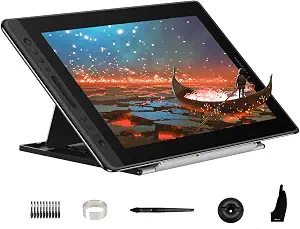
Best Overall is the editorial label for this HUION because it brings a drawing surface and a screen together while offering several ways to tailor the working setup. Its 15.6-inch full-laminated screen has anti-glare glass, and the resolution is 1920×1080. Six customized express keys and a touch bar put configurable controls on the device. The stand can be moved between 20 and 60 degrees, which gives shoppers an angle range to consider when planning where it will sit. These are concrete features to weigh, not a claim that it will suit every artist best.
The defining setup consideration is that this device must be connected to a computer or laptop to work. It is therefore a fit to investigate if your drawing routine already centers on a computer and you want to work on the tablet’s screen. Before Black Friday, check that the computer you plan to use matches the listed compatibility: Windows 7 or later, macOS 10.12 or later, or Linux (Ubuntu). Also consider where the connected device will be placed and whether the stand’s angle range suits your intended workspace. The product details do not establish how a particular desk or chair will feel, so those are personal fit questions.
Pen tilt recognition is listed at 60°. That may matter to shoppers who specifically want tilt recognition in a drawing device; it does not, by itself, answer how a particular drawing application will respond. The express keys and touch bar may also be worth considering if you prefer device controls within reach rather than relying only on computer input. Think through the actions you would want to assign and whether six keys plus a touch bar are a useful arrangement for your work. No particular software setup or control mapping is specified here.
During Black Friday comparisons, treat the screen, controls, stand, and computer requirement as one package. Check the exact listing and variant so you know the offer corresponds to the device you intend to buy, then compare the displayed terms rather than presuming a promotion or savings. This model is the Best Overall pick among the three featured products as an editorial choice: its listed display, adjustable stand, tilt recognition, and on-device controls make it a well-rounded option to consider for a computer-centered screen workflow. Its need for a computer is an important part of that choice, not a detail to overlook.
Key specs
Display
15.6-inch full-laminated screen and anti-glare glass
Resolution
1920×1080
Controls
6 customized express keys and a touch bar
Pen tilt
60° tilt recognition
Stand adjustment
moved between 20 and 60 degrees
Compatibility
Windows 7 or later, macOS 10.12 or later, and Linux(Ubuntu)
Computer connection
this device must be connected to a computer/laptop to work.
Wacom Intuos Pro Medium, Bluetooth Graphic Drawing Tablet with ProPen 3
Wacom Intuos Pro Medium, Bluetooth Graphic Drawing Tablet with ProPen 3 (ASIN B0DFZ2ZRPQ)
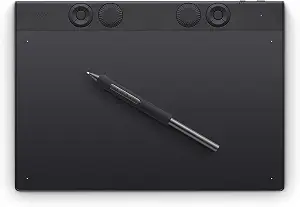
Best for Customizable Controls is the editorial label for this Wacom, based on its listed 10 customizable tablet ExpressKeys and two mechanical dials. Those controls give shoppers a specific feature set to assess if assigning tablet shortcuts and using dials are priorities. The active area is 8.7 x 5.8 inches, so compare that stated working area with the amount of room you prefer for drawing and with the space available on your desk. The label is a way to explain this guide’s placement, not a measured claim that its controls are better than those on another tablet.
This is a graphic drawing tablet with Bluetooth and two listed wired connection options: USB-C to USB-A and USB-C to USB-C. Consider which connection makes sense for the device you plan to use, and verify that the cable option you intend to use fits your setup. The listed compatible devices are Mac / PC, and the operating-system information specifies Windows 10 or later and macOS 13 or later. Check the actual computer’s operating system before Black Friday shopping; a general match to Mac or PC does not replace checking the stated version requirements.
The tablet lists 8192 levels of pressure sensitivity and comes with ProPen 3 in its product name. These details can help narrow a comparison if pressure sensitivity is among your priorities. They do not establish how any individual will experience a pen or how a specific application will use it, so consider your own drawing preferences rather than treating a specification as a guarantee of feel. Likewise, the active-area measurement is useful when imagining your working space, but it does not determine whether the size will be comfortable for every hand or project.
The Wacom may suit a shopper whose decisions start with controls and connection flexibility rather than a built-in display. It is still important to compare the full setup: the listed active area, the ExpressKeys and dials, your computer’s operating system, and whether Bluetooth or one of the USB-C connections fits your plans. In a Black Friday listing, verify the exact product and variant before weighing the offer details. The Best for Customizable Controls label reflects the feature that most clearly distinguishes this option in this guide; it is not evidence of a universal ranking or a current promotion.
Best Budget is the editorial label assigned to this PicassoTab among the featured options. It is not a statement about a live price or a claim that it is the lowest-priced drawing tablet. The central difference in its listed setup is that no computer is needed: everything runs directly on the tablet. That makes it a candidate for someone who wants the drawing work to take place on a standalone device rather than connecting a tablet to a computer. Check the exact Black Friday listing and variant to judge its actual offer; no price or discount is established here.
The product includes a laminated 10-inch screen described as reducing glare and parallax, with a resolution of 2000×1200. Its operating system is Android 14. The stylus is pressure-sensitive at 4096 levels. These specifications offer useful points of comparison if screen size, stated resolution, operating system, or pressure sensitivity matter to your choice. They do not tell you whether the device will suit every drawing style, so weigh them against what you expect to create and how you prefer to work.
Five creative apps are preloaded for drawing, painting, animation, tutorials, and guided lessons. That collection may be relevant if you value having those kinds of creative activities available on the tablet. The listed app categories do not identify individual apps or establish that they will match a particular workflow. If specific software is essential to you, check its availability and requirements rather than assuming it is included. The standalone design and preloaded apps make this option distinct from the two computer-oriented tablets in this guide, but your own preferred tools should still guide the decision.
For Black Friday, consider whether standalone use is the main reason you are looking at this model, then compare the exact offer and product details with care. The product name also describes it as portable, but practical carrying needs vary; think about where you intend to draw and whether the listed screen and included setup suit those plans. The Best Budget label is an editorial category choice based on the supplied product set, not a promise of a deal. Confirm the specific variant and offer terms instead of inferring savings from the seasonal listing.
Key specs
Standalone use
No computer needed — everything runs directly on the tablet.
Creative apps
Comes preloaded with 5 creative apps for drawing, painting, animation, tutorials, and guided lessons.
Display
The laminated 10″ screen reduces glare and parallax
Stylus
The 4096‑level pressure‑sensitive stylus
Operating system
Android 14
Resolution
2000×1200
Choose the place your drawing session begins
Start with the location and equipment you expect to use. The HUION is explicitly required to connect to a computer or laptop, and the Wacom lists Bluetooth and USB-C connection options for use with Mac / PC. The PicassoTab takes a different route: its listed operation is standalone, with no computer needed. Those descriptions help define the first decision more clearly than a broad search for a drawing tablet. Ask whether you want the drawing surface to be part of a computer-based workspace or whether you want the work to run directly on the tablet.
A computer-dependent choice makes your existing computer and its operating system part of the purchase decision. A standalone device instead puts attention on its own listed operating system and preloaded creative apps. Neither approach is automatically more convenient for every shopper; the answer depends on where you work and which setup you want. During Black Friday browsing, write down your intended device and connection before comparing offers. That keeps a seasonal promotion from distracting you from a requirement that affects everyday use.
Make the decision practical: picture where the device will sit, what other equipment you expect to use, and whether you want to connect it each time you draw. Then check the exact product listing for the version being offered. If a listing does not make the product variant or relevant terms clear, do not fill in the gaps by assumption. A clear match between your intended setup and the listed connection approach is a better starting point than choosing by a seasonal label alone.
Check operating-system details before Black Friday
Compatibility is a specific checkpoint, not a guess based on brand or device category. HUION lists Windows 7 or later, macOS 10.12 or later, and Linux (Ubuntu), and it must connect to a computer or laptop. Wacom lists Windows 10 or later and macOS 13 or later, with compatible devices identified as Mac / PC. PicassoTab lists Android 14 and standalone operation. These are different requirements, so confirm which one applies to the device you are considering.
If you are choosing between the two computer-oriented options, compare your computer’s current operating system against the stated requirement for each model. For Wacom, also decide whether Bluetooth or a listed USB-C connection is the one you intend to use. The provided details name USB-C to USB-A and USB-C to USB-C; they do not establish whether a cable you already own is suitable, so verify your intended connection rather than relying on a broad assumption. For HUION, plan around its stated computer connection requirement.
Black Friday can bring many product pages and variants into view, which makes a short compatibility check especially useful. Match the exact model in the listing to the setup you researched, and read the offer information for that variant. Do not treat a general marketplace category or a similar product name as confirmation that the operating-system details are identical. If compatibility information is unclear for your particular setup, resolve that question before purchasing rather than assuming the seasonal offer makes it less important.
Decide what you want beneath the pen
A screen-based drawing tablet and a tablet without a built-in drawing display create different working arrangements. HUION lists a 15.6-inch full-laminated screen with anti-glare glass and 1920×1080 resolution. PicassoTab lists a laminated 10-inch screen that reduces glare and parallax, at 2000×1200 resolution. Wacom’s supplied details give an active area of 8.7 x 5.8 inches rather than a screen specification. Compare the type of surface and the listed measurements that are actually provided; do not assume the products share the same format.
Consider where you want the artwork and your hand to be as you work. With the screen-based options, the provided display details can help you assess the form factor you are considering. With Wacom, the active-area measurement is the relevant stated working-space detail in this guide. Think about the kind of sessions you expect to have and the area you would like available, but remember that a measurement alone cannot decide personal comfort.
When Black Friday offers appear, compare the exact product configuration rather than treating every device called a drawing tablet as interchangeable. Check the screen or active-area details that apply to the model, then make sure the product variant in the offer matches. This comparison is most useful when connected to your own priorities: a built-in display, a stated working area, or a standalone tablet screen may each point toward a different arrangement. Let that distinction lead the choice instead of an unverified sale claim.
Match the controls and pen specifications to your habits
The listed controls differ in both form and count. HUION has six customized express keys and a touch bar; Wacom has 10 customizable tablet ExpressKeys and two mechanical dials. PicassoTab’s supplied facts emphasize a pressure-sensitive stylus and preloaded creative apps rather than listing shortcut controls. Think about the adjustments or shortcuts you would want near your drawing hand, and identify which of those details matter to your routine. More controls are not automatically more useful if they are not the controls you want.
Pen details are another point to compare without turning a specification into a promise about personal feel. HUION lists 60° tilt recognition, Wacom lists 8192 levels of pressure sensitivity, and PicassoTab lists a 4096-level pressure-sensitive stylus. These are not identical specifications, so consider which kind of information helps you choose. If your decision depends on how a specific application handles a feature, verify that use case independently rather than assuming the product specification guarantees a particular result.
For Black Friday, make a short priority list before opening multiple listings: perhaps shortcuts, a touch bar, mechanical dials, tilt recognition, or a specified pressure-sensitivity level. Then compare the relevant device details and the exact offer variant. This keeps a longer spec list from becoming a substitute for deciding how you draw. The right feature to prioritize is the one that connects to your actual workflow, not simply the one that looks most prominent in a listing.
Compare the full offer, not just the seasonal framing
A Black Friday label does not establish that a particular drawing tablet is discounted, available, or the right fit. For each option, verify the exact model and variant shown in the offer, then read the offer terms and compare them with your purchase priorities. This guide provides no current prices or promotion details, so judge the listing itself rather than relying on an assumed saving or a general seasonal message.
Use a consistent checklist across the three choices: whether a computer is required, which operating system is listed, what display or active-area details are provided, which controls are specified, and what pen information is available. For HUION, include the stand adjustment range and computer connection requirement. For Wacom, include the listed Bluetooth and USB-C options and the active area. For PicassoTab, include standalone Android 14 operation, the laminated screen, and the preloaded creative apps. A checklist helps you notice a mismatch before buying.
Finally, distinguish a product’s stated facts from what you still need to confirm for your own circumstances. Check the precise variant and any offer conditions presented to you, and avoid inferring unlisted capabilities. If two choices remain, return to the task that matters most: drawing on a connected screen, using a computer-oriented tablet with customizable controls, or working directly on a standalone device. That decision is more useful than treating the Black Friday tag as a recommendation.
Make your Black Friday choice
These three drawing tablets serve different priorities: a connected screen with an adjustable stand and express controls, a computer-oriented tablet with customizable keys and dials, or a standalone Android device with a laminated screen and preloaded creative apps. Choose the setup and specifications that make sense for your own drawing routine, then check compatibility and the exact product variant. During Black Friday, compare the actual offer terms without presuming a discount. The Best Overall, Best Budget, and Best for Customizable Controls labels are editorial choices within this selection, not guarantees of performance or value for every shopper.